Using JotForms to book a U3A Denia event or trip
Introduction
Opening the JotForm
When you click the big blue booking button on the invitation email you will be shown a screen that asks for a password. This is to protect the form from use by unauthorised people, bots, felons etc. The invitation email will contain the password you must use. The password must be entered exactly as shown in the email. It is case sensitive and must contain no extra characters, spaces etc. You may cut and paste the password from the email to the JotForm.Required items
You will then be presented with a form containing items requesting information from you. All items may contain a red asterisk. If this is present you MUST supply an answer to the question. The form will NOT accept your submission if you do not answer all questions that show a red asterisk. If there is no red asterisk, the answer is optional and you don't have to provide an answer.Details of items
Answers as text
Some items will be text boxes into which you will type the information requested. For example "First name" and "Last name" and you will enter your first name and last name as it appears on your membership badge. If you use any other form of your first name or last name it could cause problems with our processing software. The item on the form looks like:
Selection items
Other items may require selections some of which only allow on item to be selected or others where you may select more than one item. In each case the form will indicate what is required.Single choice selection
Single choice selections use circular symbols to click. You may only choose one. If you click the wrong one you can then click the one you want and the selection will change.
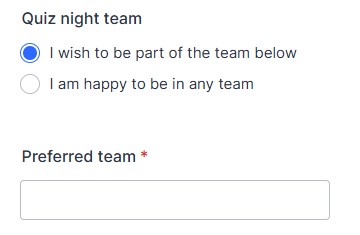
As in this example, sometimes your choice will require additional information. If your choice does require additional information an extra question will appear. If not, the extra question will be hidden and an you will not be required to supply an answer.
Multiple choice selection
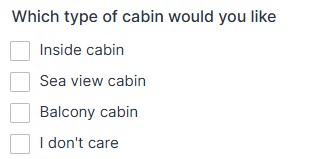
Multiple choice selections allow you to make more than one selection - you may click any, all or none of the boxes. Multiple choice selections use sqare symbols.
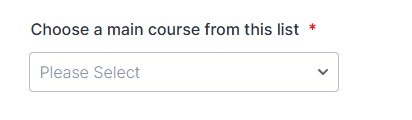
Another type of question will provide a drop down list from which you have to select your choice, such as a meal course choice.
Drop down menu selection
Membership number
You will always be asked for your membership number. This will always be provided for you on the Emails that invites you to the trip or event. If you are booking for another member, make sure you have their correct membership number. An error could cause your booking to fail.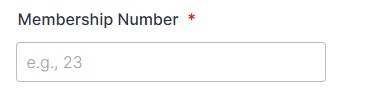
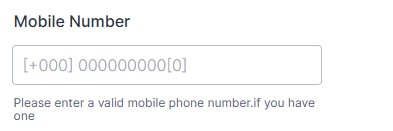
Mobile number
We may ask for your mobile phone number. This is so that we can contact you quickly if anything changes at the last minute. We will normally try to phone you with a voice call but if that fails we will send you a text.If you have a Spanish mobile phone number, just type in the 9 digits of your phone number. If your mobile phone is not Spanish enter the country code as a "+" followed by 2 or 3 digits of your country code, e.g. +44 for the UK, followed by the 9 or 10 digits of your mobile phone number.
Email address
We often ask for an email address. This is the one through which you wish to be contacted for this event or trip. It will normally be the one which you have registered on the website but sometimes, for a particular event or trip you may wish to use another one. The one you supply here will NOT change your registered email address on the website database. The response entered must be a valid email address - the form will reject anything that is not.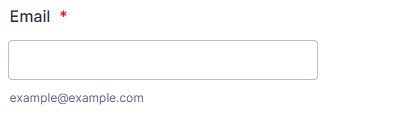
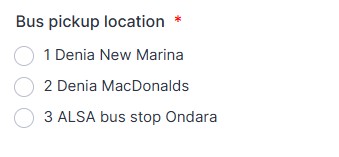
Bus pickup location
For all events or trips where we provide a bus you will be asked at which pickup location you wish to board the bus. You must select the location you wish to use as this is used to create the checklist form used for checking in members onto the bus.
Other text questions
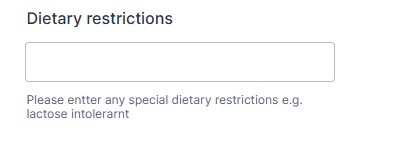
Some trips or events have selections for such items as menu choices, dietary restrictions, seating arrangements etc. If they include the red asterisk you must supply a response otherwise you may leave them blank.
Cancellations
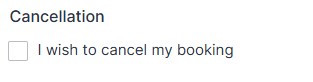
Some forms may contain a Cancellation item. This allows you to Cancel a booking you have made previously. Clicking the "I wiish to cancel my booking" option will tell us you wish to cancel your booking. If you click this option, all of the other questions except your name and membership number will be hidden and you may click the Submit button to send us your request. Our processing software will of course check to make sure that you have not accidentally cancelled the wrong booking and if there is any problem we will contact you via email.
Submitting the form
When you have supplied all of the required responses and any optional information that you wish you must click the button at the bottom to submit your booking request.
Confirmation of submission
If you have filled in the form correctly you will receive a response saying that your submission has been accepted. If any of the reponses are invalid or you have missed a required response the form will warn you and allow you to correct the error.
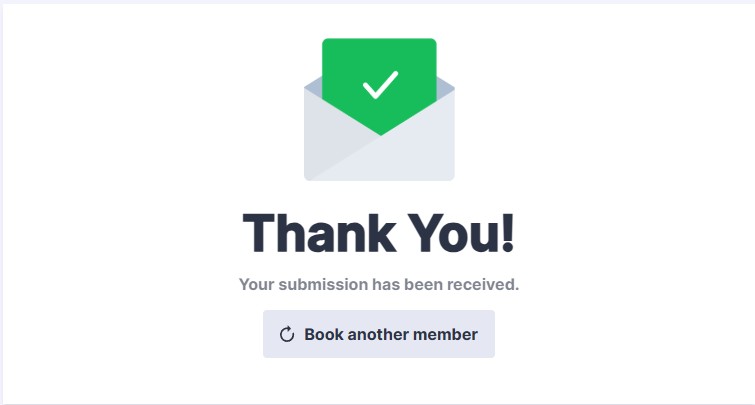
For some forms it will indicate that your booking has been accepted. For other more popular trips or event it may tell you to wait for an email to confirm your booking was successful or that you have been places on the waiting list for the trip.
Booking someone else
The response to the submit button may also indicate that you can book someone else. If you wish to book someone else make sure you have all of the required information before attempting to fill in the form.
Try it out!
Now you are ready to try the JotForm. The password you will need is:
JF-training-2204
click this link to try it!
JF-training-2204
click this link to try it!